by mr_es335 » Sun Jul 27, 2025 11:32 am
Good day,
The following information may NOT be of interest to some...but for to others, such information...just might be! Thus, you are free to skip this post altogether.
However, for those that might be interested...read on...
* Note: I have provided both references and images of my current research efforts...
In the SAC User Manual [v1.4 ], 3.1.6 Tweaking Windows For Better Performance, Windows 10 (64 Bit), 12) Disable items in Task Scheduler From Auto-Starting, page 29, Bob lists a number of "tasks"...some 125 [1], to be exact..., that he "suggests" disabling.
Thus, after manually going through disabling each of these 125 entries, I decided to do some research into precisely what Windows Task Scheduler really-and-truly IS. Here is what I have discovered...
1) What is Windows Task Scheduler?
Response: "The Task Scheduler service allows you to perform automated tasks on a chosen computer. With this service, you can schedule any program to run at a convenient time for you or when a specific event occurs. The Task Scheduler monitors the time or event criteria that you choose and then executes the task when those criteria are met." [2]
Observations
1) Windows Task Scheduler is a "service".
2) Windows Task Scheduler "...allows you to perform automated tasks on a chosen computer..."
Question: What if I do NOT want to perform any such automated tasks on my chosen computer?
Answer: I do NOT want to perform any such automated tasks on my chosen computer?
2) I came across this snippet [3], wherein, postanote stated, "ScheduledTasks are just xml files which are stored here: C:\Windows\System32\Tasks"....and "By Golly!"...that is what these entries are!! Interesting!
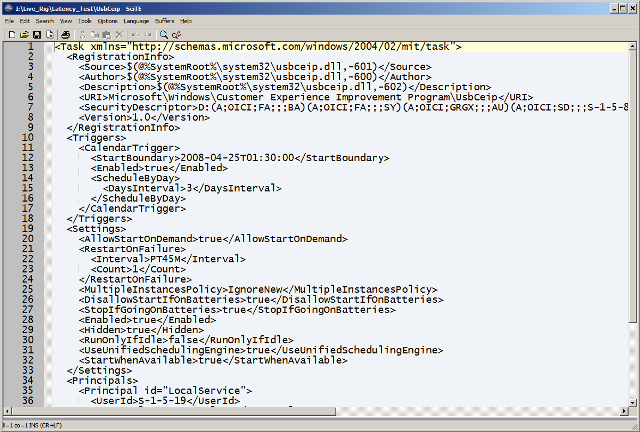
3) So, what is an "xml" file?
Response [4]: An XLM file contains one or more macros used for automating processes in Microsoft Excel, a spreadsheet application. It is a script used to perform complex or repetitive Excel functions, such as inserting data in cells or formatting charts.
More Information
Microsoft introduced XLM files in 1992 with the release of Excel 4.0. The files were commonly used by Excel users until the late-2000s, when Microsoft released Excel 2007. Excel 2007 enabled users to save macros with spreadsheets and save those spreadsheets as .XLSM or .XLTM files.
* Note: Though that above article - even though dated, notes that "...While XLM files are not as common as they once were..." I disagree, as I still "encounter" xml files on a very regular basis. For example, Overloud employs xml files, as does Native Instruments, and many others.
To continue...
Anyhow, after performing all of the necessary research, I decided to, based on the information gleaned from stackoverflow, to a) perform a disk image, and b) "nuke" the entire Tasks folder!
I employ a Behringer UMC 1820 USB2 audio interface with the latest drivers, with the buffers set to 128.
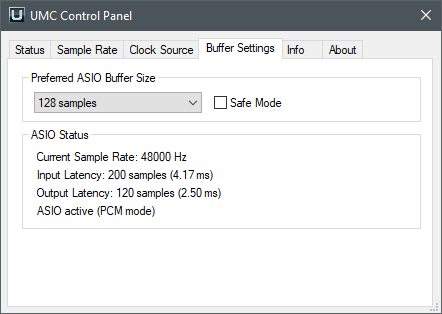
I then performed a "clean" installation of SAC, and with SAC configured to 1x128. I then installed Guitar Rig 5...performing the required testing.
The Testing
I configured SAC for 12 Input channels and 1 Output channel.
I inserted 12 instances of Guitar Rig 5 with my custom, overloaded preset configuration.
* Note: One of the interesting features of Guitar Rig 5 is the ability to insert Pre and Post Tape Decks. Inserting a Pre Tape Deck permits you to "load a lick" - thus negating the need to have a performer being involved in the entire testing process. This feature is particularly handy when employing multiple instances of a plug-in...such as what I am doing here with Guitar Rig 5.
In the end, I have 12 instances of Guitar Rig 5, each with a Pre Tape Deck loaded, each with a "lick".
Then I enabled [LIVE] mode.
* To begin with, for whatever reason, when enabling [LIVE] mode the first time, I always end up with 1 slipped buffer. If I then disable and then re-enable [LIVE] mode, the buffers reset to 0.
Anyhow, after some 3 days, and 12 hours each day testing out this configuration, I have had NO issues whatsoever.
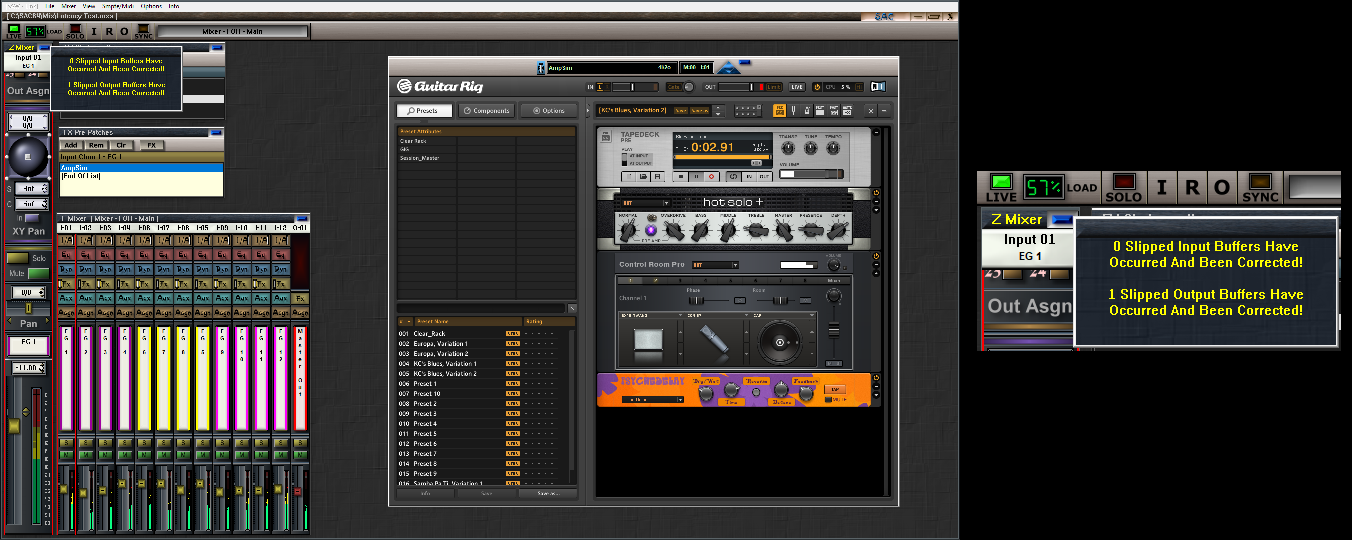
This begs the question then, "What does this all mean with regards to Windows Tasks?" In my humble opinion..."Not much!"
Observations
1) SAC, as noted, loads with 1 slipped buffer, at 57% load.
2) After 20 minutes or so, and rather intermittently I must say, the buffers jump to 5-7 slipped buffers.
3) All that I CAN say thus far is that I would NEVER employ SAC in this manner.
4) My employment involves, 1 instance each of an Emcee, a Nylon Strung, a Steel Strung, and an Electric Guitar with Backing Tracks...and that is it!
In closing...
I have "other" yet tests to perform - for example, the Windows "Services"...but thus far I am very pleased with the end result that I have been experiencing.
For those that might wish to attempt such tests, please employ disk imaging at the outset...and during the entire testing process.
Any comments on the above would be greatly appreciated.
As always, I hope that the above information will be of some practicable employment?
Thank you for your time....appreciated!
References
[1] Windows 10 LTSC lists 173 entries in total, whilst Windows 10 Pro lists some 210 entries.
* On the other hand, Windows 7 Pro has 55 tasks!!
[2] https://learn.microsoft.com/en-us/windo ... -scheduler
[3] https://stackoverflow.com/questions/56926116/how-to-delete-folder-from-task-scheduler-with-powershell
* See Item 8
* Jul 8, 2019 at 6:24
[4] https://fileinfo.com/extension/xlm
[size=100]Good day,
The following information may NOT be of interest to some...but for to others, such information...just might be! Thus, you are free to skip this post altogether.
However, for those that might be interested...read on...
* Note: I have provided both references and images of my current research efforts...
In the SAC User Manual [v1.4 ], 3.1.6 Tweaking Windows For Better Performance, Windows 10 (64 Bit), 12) Disable items in Task Scheduler From Auto-Starting, page 29, Bob lists a number of "tasks"...some 125 [1], to be exact..., that he "suggests" disabling.
Thus, after manually going through disabling each of these 125 entries, I decided to do some research into precisely what Windows Task Scheduler really-and-truly IS. Here is what I have discovered...
1) What is Windows Task Scheduler?
Response: "The Task Scheduler service allows you to perform automated tasks on a chosen computer. With this service, you can schedule any program to run at a convenient time for you or when a specific event occurs. The Task Scheduler monitors the time or event criteria that you choose and then executes the task when those criteria are met." [2]
[B]Observations[/B]
1) Windows Task Scheduler is a "service".
2) Windows Task Scheduler "...allows you to perform automated tasks on a chosen computer..."
Question: What if I do NOT want to perform any such automated tasks on my chosen computer?
Answer: I do NOT want to perform any such automated tasks on my chosen computer?
2) I came across this snippet [3], wherein, postanote stated, "ScheduledTasks are just xml files which are stored here: C:\Windows\System32\Tasks"....and "By Golly!"...that is what these entries are!! Interesting!
[/size][IMG]https://www.sentinelmusicstudios.com/ftp/rml_labs/images/image_1.png[/IMG]
[size=100]
3) So, what is an "xml" file?
Response [4]: An XLM file contains one or more macros used for automating processes in Microsoft Excel, a spreadsheet application. It is a script used to perform complex or repetitive Excel functions, such as inserting data in cells or formatting charts.
[B]More Information[/B]
Microsoft introduced XLM files in 1992 with the release of Excel 4.0. The files were commonly used by Excel users until the late-2000s, when Microsoft released Excel 2007. Excel 2007 enabled users to save macros with spreadsheets and save those spreadsheets as .XLSM or .XLTM files.
* Note: Though that above article - even though dated, notes that "...While XLM files are not as common as they once were..." I disagree, as I still "encounter" xml files on a very regular basis. For example, Overloud employs xml files, as does Native Instruments, and many others.
[B]To continue...[/B]
Anyhow, after performing all of the necessary research, I decided to, based on the information gleaned from stackoverflow, to a) perform a disk image, and b) "nuke" the entire Tasks folder!
I employ a Behringer UMC 1820 USB2 audio interface with the latest drivers, with the buffers set to 128[color=#800080].
[/color][/size][IMG]https://www.sentinelmusicstudios.com/ftp/rml_labs/images/image_2.png[/IMG][size=100][color=#800080][/color]
I then performed a "clean" installation of SAC, and with SAC configured to 1x128. I then installed Guitar Rig 5...performing the required testing.
[B]The Testing[/B]
I configured SAC for 12 Input channels and 1 Output channel.
I inserted 12 instances of Guitar Rig 5 with my custom, overloaded preset configuration.
* Note: One of the interesting features of Guitar Rig 5 is the ability to insert Pre and Post Tape Decks. Inserting a Pre Tape Deck permits you to "load a lick" - thus negating the need to have a performer being involved in the entire testing process. This feature is particularly handy when employing multiple instances of a plug-in...such as what I am doing here with Guitar Rig 5.
In the end, I have 12 instances of Guitar Rig 5, each with a Pre Tape Deck loaded, each with a "lick".
Then I enabled [LIVE] mode.
* To begin with, for whatever reason, when enabling [LIVE] mode the first time, I always end up with 1 slipped buffer. If I then disable and then re-enable [LIVE] mode, the buffers reset to 0.
Anyhow, after some 3 days, and 12 hours each day testing out this configuration, I have had NO issues whatsoever.
[/size][IMG]https://www.sentinelmusicstudios.com/ftp/rml_labs/images/image_3.png[/IMG]
[size=100]
This begs the question then, "What does this all mean with regards to Windows Tasks?" In my humble opinion..."Not much!"
[B]Observations[/B]
1) SAC, as noted, loads with 1 slipped buffer, at 57% load.
2) After 20 minutes or so, and rather intermittently I must say, the buffers jump to 5-7 slipped buffers.
3) All that I CAN say thus far is that I would NEVER employ SAC in this manner.
4) My employment involves, 1 instance each of an Emcee, a Nylon Strung, a Steel Strung, and an Electric Guitar with Backing Tracks...and that is it!
[B]In closing...[/B]
I have "other" yet tests to perform - for example, the Windows "Services"...but thus far I am very pleased with the end result that I have been experiencing.
For those that might wish to attempt such tests, please employ disk imaging at the outset...and during the entire testing process.
Any comments on the above would be greatly appreciated.
As always, I hope that the above information will be of some practicable employment?
Thank you for your time....appreciated!
[B]References[/B]
[1] Windows 10 LTSC lists 173 entries in total, whilst Windows 10 Pro lists some 210 entries.
* On the other hand, Windows 7 Pro has 55 tasks!!
[2] [URL]https://learn.microsoft.com/en-us/windows/win32/taskschd/about-the-task-scheduler[/URL]
[3] [url=https://stackoverflow.com/questions/56926116/how-to-delete-folder-from-task-scheduler-with-powershell]https://stackoverflow.com/questions/56926116/how-to-delete-folder-from-task-scheduler-with-powershell
[/URL]* See Item 8[/size]
[size=100] * Jul 8, 2019 at 6:24
[/size][size=100][4] [URL]https://fileinfo.com/extension/xlm[/URL]
[/size]